Welcome to CURISTICA Hazard Log Visualiser
A cloud-based platform for managing medical device hazard logs in compliance with DCB0129, DCB0160, and ISO 14971.
📖 Complete User Manual Available!
For detailed step-by-step instructions, workflows, and troubleshooting, see: USER_GUIDE.md
The guide covers everything from importing data to exporting regulatory reports.
🚀 Quick Start
First Time Users:
- Select a product from the dropdown in the header above
- Explore the tabs below to view your hazard log in different formats
- Import new data via the Import tab (Excel → Database)
📤 Need to import your hazard log?
Go to the Import tab → Select Excel file → Normalize → Convert → Upload to Database
📑 Platform Tabs
2️⃣ Hazard Log
Your main workspace • View, Edit, Export • Database persistence
What is this tab for?
View: Hierarchical display with search, statistics, and pagination
Edit: Click ✏️ EDIT MODE in the floating sidebar to add/modify/delete items
Save: Click 💾 Save Changes to write to database (all users see changes)
Export: Download JSON or Excel (Data format for analysis, Report format for presentations)
Protection: Auto-save every 30 seconds • Undo/Redo (Ctrl+Z/Y) • Warning on page close
3️⃣ Bow-Tie Diagram
Simple visual: Causes → Controls → Hazard → Harm • Best for presentations
4️⃣ Network Graph (D3.js)
Interactive bow-tie with zoom/pan • Risk color-coding (1-5 scale)
5️⃣ Network Graph (Cytoscape.js) ⭐
Advanced graph • Shared control detection (orange border) • Click controls to highlight
What makes this special?
Shared Control Detection: Automatically identifies controls that mitigate multiple causes (shown with orange border and count)
Interactive Highlighting: Click any control to see its relationships with golden highlights
Split Layout: Graph view (left) + Detail panel (right) for exploring complex relationships
Best For: Finding shared controls and understanding control-to-cause mappings
6️⃣ Import
Convert Excel to database • Normalize → Convert → Upload
7️⃣ Settings
Database management • View products • Delete (requires typing "DELETE")
✅ Common Workflows
Adding New Hazards/Controls
- Go to Hazard Log tab
- Click ✏️ EDIT MODE in the floating sidebar (right side)
- Click ➕ Add buttons to add new items
- Click 💾 Save Changes to write to database
- Switch tabs to see changes visualized
Editing Existing Items
- Enter edit mode (✏️ EDIT MODE button)
- Click any field with blue dashed border to edit
- Type changes and click away to save to memory
- Use Ctrl+Z to undo, Ctrl+Y to redo
- Click 💾 Save Changes when ready
Importing New Product
- Go to Import tab
- Select Excel file (.xlsx)
- Click Normalize → Convert to JSON
- Fill in product metadata (name, version, DCB)
- Click Upload to Database
- Product appears in header dropdown immediately
Exporting Reports
- Go to Hazard Log tab
- Click 📊 Export Excel (Report) for NHS Standard format
- Or click 📊 Export Excel (Data) for flat analysis format
- File downloads with 4 tabs: Summary, Hazard Log, Risk Matrix, Controls
- Use Report format for regulatory submissions (DCB0129/DCB0160)
⚠️ Deleting a Product (PERMANENT)
- Go to Settings tab → Click 🔄 Refresh
- Find product in table, click 🗑️ Delete
- Read warning carefully
- Type exactly DELETE (all caps) in the input field
- Press Enter or click Delete Project button
⚠️ WARNING: Permanently deletes ALL hazards, causes, controls, evidence, and relationships. Cannot be undone! Export JSON backup first.
💡 Key Features to Remember
- ☁️ Database Sync: Edits persist across sessions and are visible to all users instantly
- 👁️ Live Preview: See edits in all tabs before clicking Save Changes
- ↶ Undo/Redo: Full change history with Ctrl+Z (undo) and Ctrl+Y (redo)
- 💾 Auto-Save: Browser backup every 30 seconds (not database - click 💾 Save for that)
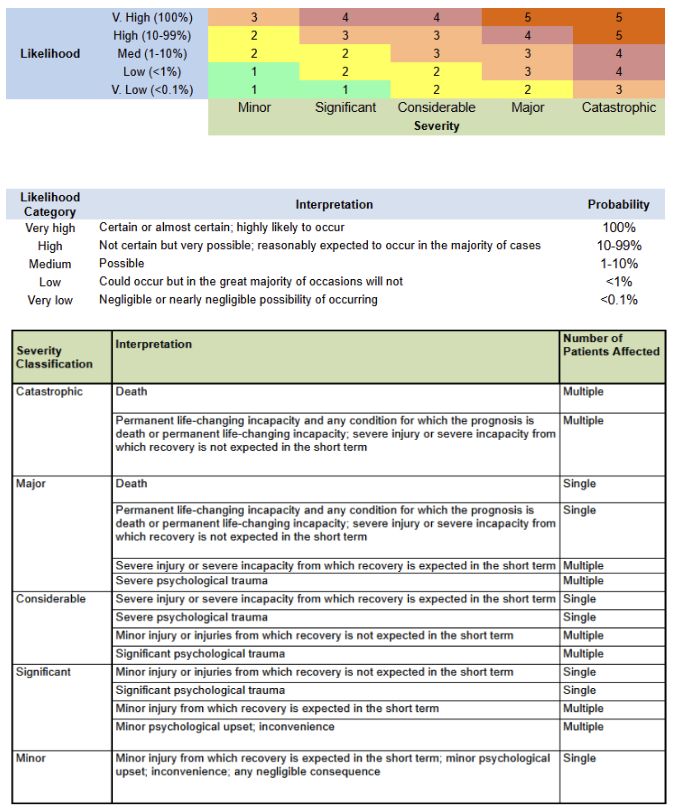
- 🎨 Risk Color Coding: 1 Green 2 Yellow 3 Orange 4 Light Red 5 Dark Red
- 🔗 Shared Controls: Orange border in Cytoscape graph = control protects multiple causes
📖 Need More Help?
For detailed instructions, see USER_GUIDE.md
- Step-by-step workflows
- Troubleshooting guide
- NHS Risk Matrix explanation
- Compliance requirements (DCB0129, DCB0160, ISO 14971)
- Best practices and tips
✨ Ready to Start?
Select a product from the dropdown above or click the Import tab to upload your hazard log.
📥 Import JSON to Database
Upload a processed JSON file (v2.0 normalized format) to import it directly into the database.
Drag & drop your JSON file here
or click to browse
Supported: .json (v2.0 normalized format)
Selected:
📤 Import Excel Hazard Log
Upload your Excel hazard log file to convert it to JSON format. Files are processed entirely in your browser - your data never leaves your computer.
Generic: Works with any hazard log format. Automatically detects column structure.
Drag & drop your Excel file here
or click to browse
Supported: .xlsx, .xls
➕ Add Controls to Existing Product
Upload an Excel file with additional controls to add to an existing product in the database.
Drag & drop your controls Excel file here
or click to browse
Supported: .xlsx, .xls
📋 Expected Excel Format
Your Excel file should contain the following columns:
cause_id- ID of the cause this control mitigates (must exist in product)control_id- Unique identifier for the controlcontrol_description- Description of what the control doescontrol_type- Type (e.g., DESIGN, TRAINING, PROCESS)control_category- Category (e.g., initial, additional)evidence(optional) - Supporting evidence reference
📄 Upload SPID/SCID Documents
Upload Structured Product Information Documents (SPID) or Structured Context Information Documents (SCID) in JSON format.
SPID: All products | SCID: DCB 0160 products only
📋 Upload SPID
Structured Product Information Document (JSON format)
Drag & drop SPID JSON here
or click to browse
Supported: .json (validated against SPID schema)
Selected:
🏥 Upload SCID
Structured Context Information Document (JSON format)
Drag & drop SCID JSON here
or click to browse
Supported: .json (validated against SCID schema)
Selected:
ℹ️ Document Requirements
- SPID: Required for all products (DCB 0129 and DCB 0160)
- SCID: Required only for DCB 0160 products (deployment context)
- Documents must be valid JSON matching the SPID/SCID schema
- Each product can have one SPID and multiple SCIDs
- Validation is performed automatically before upload
Please select a JSON file to view
📋 No Hazard Log Data
Load a hazard log to start reviewing controls in Workshop mode.
Please select a JSON file to view
Detail View
Click on a node or edge to view details
Please select a JSON file to view
Please select a JSON file to view
Data Analyser
Load a hazard log file to see detailed statistics.
Export Options
Export your hazard log data in various formats. Customize filenames or use defaults with timestamp.
💡 Tips
- Leave filename blank to use default format:
hazard_log_YYYY-MM-DD - Custom filenames will automatically add the appropriate extension (.json or .xlsx)
- Timestamps ensure unique filenames and prevent overwriting existing files
- All exports use the currently loaded hazard log data
🗄️ DATABASE
Manage products, SPID documents, and SCID documents
📦 Products
Click "Refresh" to load products
📄 SPID Documents
Click "Refresh" to load SPID documents
📋 SCID Documents
Click "Refresh" to load SCID documents
👨⚕️ Clinical Safety Officers (CSO)
Manage Clinical Safety Officers responsible for hazard log oversight and product safety. CSOs are assigned to products and sign off on safety assessments.
Click "Refresh" to load Clinical Safety Officers
🔄 Convert DCB 0129 to DCB 0160
Create a new DCB 0160 product by duplicating a DCB 0129 product and filtering for TRANSFERRED status hazards only. This workflow is commonly used when transitioning hazards from DCB0129 to DCB0160 standards.
Refresh to load available DCB 0129 products
New Product Metadata (DCB 0160)
ℹ️ How Conversion Works
- Only hazards with STATUS = "TRANSFERRED" will be included
- All causes linked to transferred hazards will be copied
- All controls linked to those causes will be copied
- All evidence linked to those controls will be copied
- The new product will have DCB = "0160"
- Original IDs will be preserved for traceability
- The source product remains unchanged
🏥 Health Information Technology Log
Manage health IT products used across deployment sites (from SCID documents Section E)
📋 Select Organisation
📋 Health IT Products
Select an organisation and click "Load HIT Log"
ℹ️ About HIT Log
The Health Information Technology Log tracks all IT products and systems used by healthcare organisations. This data is part of the SCID (Safety Case Information Document) Section E.
- View all HIT products for a selected organisation
- Edit product details including DCB compliance status
- Add new products to track
- Export data to Excel for reporting
- Track integration status with GP systems
- Monitor contract end dates and procurement details
Settings
Choose between light and dark color schemes
Choose a color palette optimized for color vision deficiency (red-green color blindness)
Color-blind mode uses blue-orange scale instead of green-red, with added icons for clarity
Choose which tab opens by default when loading a product
Default: Workshop tab (recommended for hazard review)
Choose your preferred font family for the entire application
Note: Font changes apply instantly across the entire application and are saved automatically.
Choose between collapsible sidebar or classic horizontal tabs
💡 Sidebar navigation offers keyboard shortcuts (Ctrl+B), drag-to-resize, and pinnable tabs
⚠️ Page will reload to apply navigation style changes
Customize ID prefixes for hazards, causes, controls, and evidence. ID format will be [PREFIX]-XXX where XXX is a 3-digit number (e.g., HAZ-001).
Note: These preferences will be used when generating new IDs for hazards, causes, controls, and evidence. Changes will take effect immediately after saving.
🔐 Admin Settings
Administrative functions for user management and audit logging
Manage user accounts and product access permissions
View system activity and compliance audit trail
Track all changes to entities and rollback to previous versions
📜
Select a product to view version history
Configure where user feedback is sent
Note: User feedback submitted via the header button will be emailed to this address. Default: support@curistica.com
Add New Hazard
Add New Cause
Add New Control
Add Evidence
✏️ Edit Cause
✏️ Edit Control
✏️ Edit Evidence
🔗 Link Existing Cause to Hazard
Preview:
Select a cause to see details...
🔗 Link Existing Control to Cause
Preview:
Select a control to see details...
🔗 Link Existing Evidence to Control
Preview:
Select evidence to see details...
Confirm Deletion
Are you sure you want to delete this item?
⚠️ Delete Project
Are you sure you want to delete this product?
This will permanently delete all associated:
- Hazards
- Causes
- Controls
- Evidence
- All relationships
This action cannot be undone.
Type DELETE to confirm:
📋 Duplicate Project
Enter metadata for the duplicated project:
* Required fields
🔄 Convert to DCB 0160
This will create a copy of this project configured for DCB 0160.
All hazards, causes, controls, and evidence will be copied to the new project.
This will be added to the project name: "Project Name 0160 @ [Location]"
What will be created:
• DCB: 0160
• Date: Today's date
• Description: "draft 0160 created from [source project]"
💬
📊 NHS Risk Matrix
This risk matrix shows how severity and likelihood combine to determine risk scores (1-5).